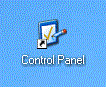
To check or change your display resolution, select Control Panel from the Start menu.

In the Control Panel window, double-click the Display icon.
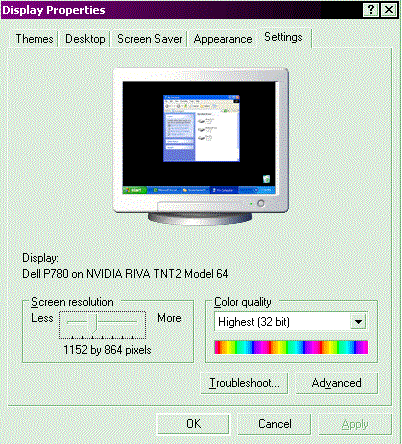 The Display Properties window will open. Click on the Settings tab (the furthest to the right along
the top). At the
bottom left of the window, notice the section labeled Screen Resolution. In the example here, the
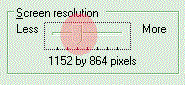
resolution is set at 1152 by 864 pixels. If yours is set at 800 by 600 pixels, move it up a notch to
at least 1024 by 768 pixels by clicking once just to the right of the little slider (highlighted with
the red circle in the picture below).
The Display Properties window will open. Click on the Settings tab (the furthest to the right along
the top). At the
bottom left of the window, notice the section labeled Screen Resolution. In the example here, the
resolution is set at 1152 by 864 pixels. If yours is set at 800 by 600 pixels, move it up a notch to
at least 1024 by 768 pixels by clicking once just to the right of the little slider (highlighted with
the red circle in the picture below).
Then click the Apply button at the extreme lower right of the Display Properties window. Your screen will flicker, and you may be prompted to confirm the setting change. If so, click Yes, then click the OK button to close the Display Properties window. If you're not prompted to confirm the change, then just click OK.